パソコンをつくろう!(パソコン自作のすすめ)
組み立てキットを使って自作に挑戦!
[第393回]
●Windowsネットワーク(16)SMB.CONF netbios name
相変わらず時間に追われています。
今回も走り書きです。
いつも問題が解決する瞬間は実にあっけないものです。
あれだけ何日も何日も悩んであれこれ試してもクリアできなかったのがまるで嘘だったように思えます。
やっぱりSAMBAでした。
Linuxの場合Windowsネットワークに接続するにはSAMBAの設定をします。
/etc/samba/smb.confというファイルに必要な部分を書き加えます。
LinuxではテキストエディタとしてViを使うのが作法のようです。
Windowsに慣れた身にはなかなかに使いづらいエディタです。
端末で
sudo vi /etc/samba/smb.conf
と入力するとsmb.confが表示されます。
こんな感じですがほとんどはコメント文になっています。
#
# Sample configuration file for the Samba suite for Debian GNU/Linux.
#
#
# This is the main Samba configuration file. You should read the
# smb.conf(5) manual page in order to understand the options listed
# here. Samba has a huge number of configurable options most of which
# are not shown in this example
#
# Some options that are often worth tuning have been included as
# commented-out examples in this file.
#  - When such options are commented with ";", the proposed setting
#    differs from the default Samba behaviour
#  - When commented with "#", the proposed setting is the default
#    behaviour of Samba but the option is considered important
#    enough to be mentioned here
#
# NOTE: Whenever you modify this file you should run the command
# "testparm" to check that you have not made any basic syntactic
# errors.

#======================= Global Settings =======================

[global]
|
相当に長い文章ですが文末に共有したいファイル(フォルダ)について次のように記述します。
[public]
        path=/home/user/kyoyu
        browsable=yes
        writable=yes
        read only=no
        guest ok=yes
        public=yes
|
ここではkyoyuというフォルダをpublicという名前で共有設定しています。
ネットなどを検索しますと大抵はこれしか出てきません。
でも。
これでは足りません。
それがやっとわかりました。
たった一行追加するだけです。
#======================= Global Settings =======================

[global]

## Browsing/Identification ###

# Change this to the workgroup/NT-domain name your Samba server will part of
   workgroup = WORKGROUP

# server string is the equivalent of the NT Description field
|
workgroup = WORKGROUP
の次に下のように一行追加します。
#======================= Global Settings =======================

[global]

## Browsing/Identification ###

# Change this to the workgroup/NT-domain name your Samba server will part of
   workgroup = WORKGROUP
   netbios name = MINT_MATE

# server string is the equivalent of the NT Description field
   server string = %h server (Samba, Ubuntu)
|
netbios name = リナックスマシンの名前(momoeでもhanakoでもご自由に。でも多分半角英数のほうが間違いないと思います)
たったその一行を追加するだけでよかったのでした。
なんてことだ。まったく。
Viは編集モードに入るのに[i]キーでエントリします。
行を追加したら最後に[Esc]でコマンドモードに戻ってそこで[:][w][q]と入力するとファイルが保存されます。
それだけではだめでそのあと
sudo systemctl restart smbd
を実行した後リナックスを一旦再起動します。
sudo reboot
すると。
前回書きましたようにWindowsのネットワークにLinuxのマシン名が表示されて共有フォルダにアクセスできるようになります。
前回はずっとアクセスできなかったLinux Mint Mate(ハードディスク#210)が上記のようにしたらWindows7とWindows11のネットワークに表示されるようになりました。
別のリナックスマシンLinux Mint Cinnamonはネットワークの場所の追加をすると共有フォルダにはアクセスできるようになるのですがやっぱりWindowsネットワークには表示されませんでした([第389回])。
そのときはそれでよいかということで一旦は納得することにしたのですが。
今回あまりにあっけなくWindowsネットワークに表示されたものですからまだ半信半疑ではありましたがLinux Mint Cinnamonでも同じことをやってみました。
そうしましたら。
下はWindows11です。
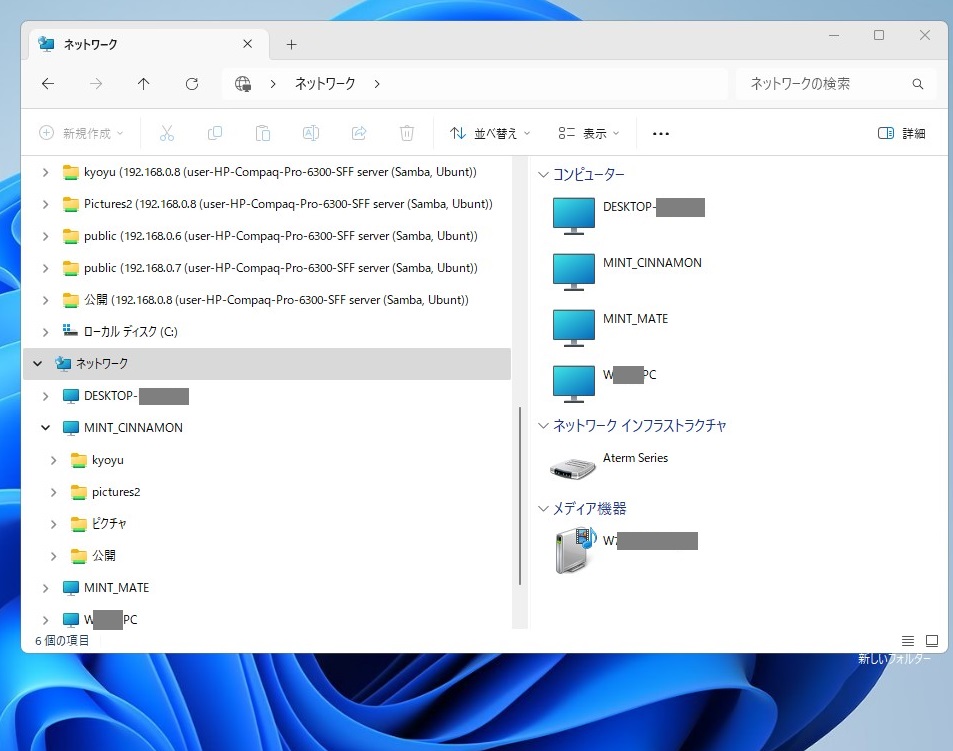
MINT_MATEだけではなくてMINT_CINNAMONも表示されました。
共有フォルダにもアクセスできます。
そして下はWindows7です。
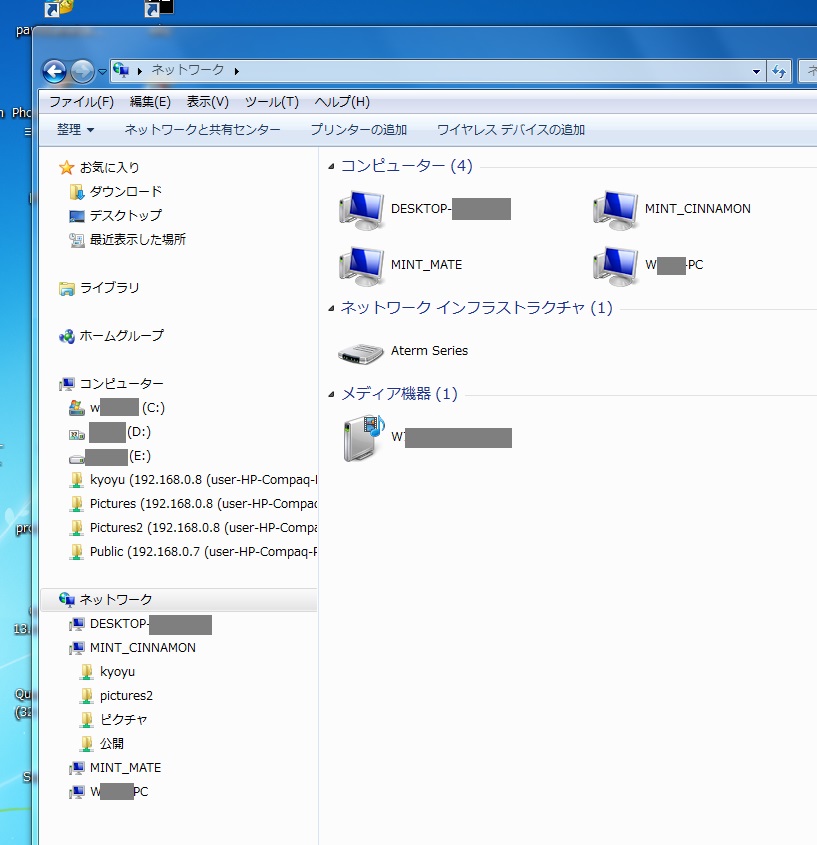
こちらもMINT_CINNAMONが表示されました。
ほんと。
あんなに悩んだのがまるでウソのようです。
これにて。
一件落着!
パソコンをつくろう![第393回]
2026.1.23upload
前へ
次へ
目次へ戻る
ホームページトップへ戻る